My goal is to create an environment where I can let Claude Code work autonomously on an issue: write tests, code, iterate on the solution, and finally create a PR. For convenience in reviewing and commenting on the code, I want this to happen in an IDE (VS Code).
But I also want at least some security. For example, I don’t want Claude to leak my private SSH key, read anything from the filesystem outside the project’s directory, or run any git operations other than those strictly related to the repository in question.
Hence, simply running claude --dangerously-skip-permissions on my host machine is out of the question. But, that’s what Dev Containers are for! They provide a Docker container isolated development environment, with excellent VS Code integration.
However, setting up a container that would run Claude in “YOLO” mode by default proved not so trivial—it took a couple of hours (probably doubled because I let myself be deceived by the “easy” solutions AI came up with ;) ).
But in the end, it works! Here are the details.
Base image
When defining a dev container, you can use a pre-built base image or define your own Dockerfile. I went with the second option, as I wanted to install some additional dependencies, but also because it’s more future-proof: turning the setup into a docker-compose one (with multiple images started as part of the dev environment, e.g., a database) makes it almost trivial.
As I’m doing Scala development, which requires a JDK, I used the “official” dev containers Java image as the base image for the Dockerfile, enriched with essential tooling and sbt (a Scala build tool).
I could have installed Java using the dev container features; however, I found that for larger dependencies, the Docker layering and caching mechanism works better (i.e., using the Java feature, I often ended up waiting for Java to be redownloaded when rebuilding the image).
Here’s the final file, from the Ox project’s sources:
FROM mcr.microsoft.com/devcontainers/java:25

# Install essential tools
RUN apt-get update && \
    apt-get install -y vim curl wget git jq && \
    apt-get clean && \
    rm -rf /var/lib/apt/lists/*

# Install sbt
RUN curl -fL "https://github.com/sbt/sbt/releases/download/v1.12.0/sbt-1.12.0.tgz" | tar xz -C /tmp && \
    mv /tmp/sbt/bin/sbt /usr/local/bin/ && \
    mv /tmp/sbt/bin/sbt-launch.jar /usr/local/bin/ && \
    chmod +x /usr/local/bin/sbt && \
    rm -rf /tmp/sbt
Dev container definition: basics
The “heart” of the dev container configuration is the devcontainer.json file. We’ll cover it in pieces next, but here’s the full file for reference.
On top of the Docker container, I’m layering a couple of features (packages installed when the container starts): node (for Claude), claude itself, and the gh command-line client.
In the future, this might end up in the Dockerfile, just as Java did:
{
  "name": "ox",
  "build": {
    "dockerfile": "Dockerfile"
  },
  "features": {
    "ghcr.io/devcontainers/features/node:1": {
      "version": "24"
    },
    "ghcr.io/anthropics/devcontainer-features/claude-code:1.0": {},
    "ghcr.io/devcontainers/features/github-cli:1": {
      "installDirectlyFromGitHubRelease": true,
      "version": "latest"
    }
  }
  // …
}
VS Code integration
After the features, there is a section where you configure the VS Code integration: which extensions should be available in the container, and what should be the default settings.
The extensions are: claude, metals (Scala IDE), and github integration. In the settings, I’m requesting that the GUI-integrated Claude always start in “dangerous” mode and that any new sessions run with bypassPermissions. Also, I’m using Opus as the default model:
  "customizations": {
    "vscode": {
      "extensions": [
        "anthropic.claude-code",
        "scalameta.metals",
        "scala-lang.scala",
        "github.vscode-pull-request-github"
      ],
      "settings": {
        "terminal.integrated.defaultProfile.linux": "bash",
        "claudeCode.allowDangerouslySkipPermissions": true,
        "claudeCode.initialPermissionMode": "bypassPermissions",
        "claudeCode.selectedModel": "opus"
      }
    }
  }
Preserving settings
To preserve settings and Claude authorization between restarts, you need to mount the container’s home directory to a volume. On top of that, I’m re-mounting a couple of specific files and directories, which are my personal Claude settings: CLAUDE.md, agents, and commands.
Hence, the entire ~ = /home/vscode directory becomes a Docker volume, which includes ~/.claude. However, ~/.claude/CLAUDE.md (and others) is remapped to what’s on the host.
It’s important to store the entire home directory as a volume, as Claude stores its settings in a couple of places: ~/.claude.json and the ~/.claude directory. If any are missing, you’ll need to re-authenticate:
"mounts": [
    "type=volume,source=ox-vscode-home,target=/home/vscode",
    "type=bind,source=${localEnv:HOME}/.claude/CLAUDE.md,target=/home/vscode/.claude/CLAUDE.md,readonly",
    "type=bind,source=${localEnv:HOME}/.claude/commands,target=/home/vscode/.claude/commands,readonly",
    "type=bind,source=${localEnv:HOME}/.claude/agents,target=/home/vscode/.claude/agents,readonly"
  ]
GitHub security
Now for some GitHub security. I don’t want the container to have access to the host’s ssh-agent, so that it cannot run any actions on my behalf (using my private key). Hence, the SSH_AUTH_SOCK environment variable is set to an empty value. This makes the hosts ssh-agent inaccessible from the container.
But then, I do want Claude to be able to push to the repository, create PRs, or change issues. Hence, I’ve created a fine-grained GitHub token, which has the required permissions:
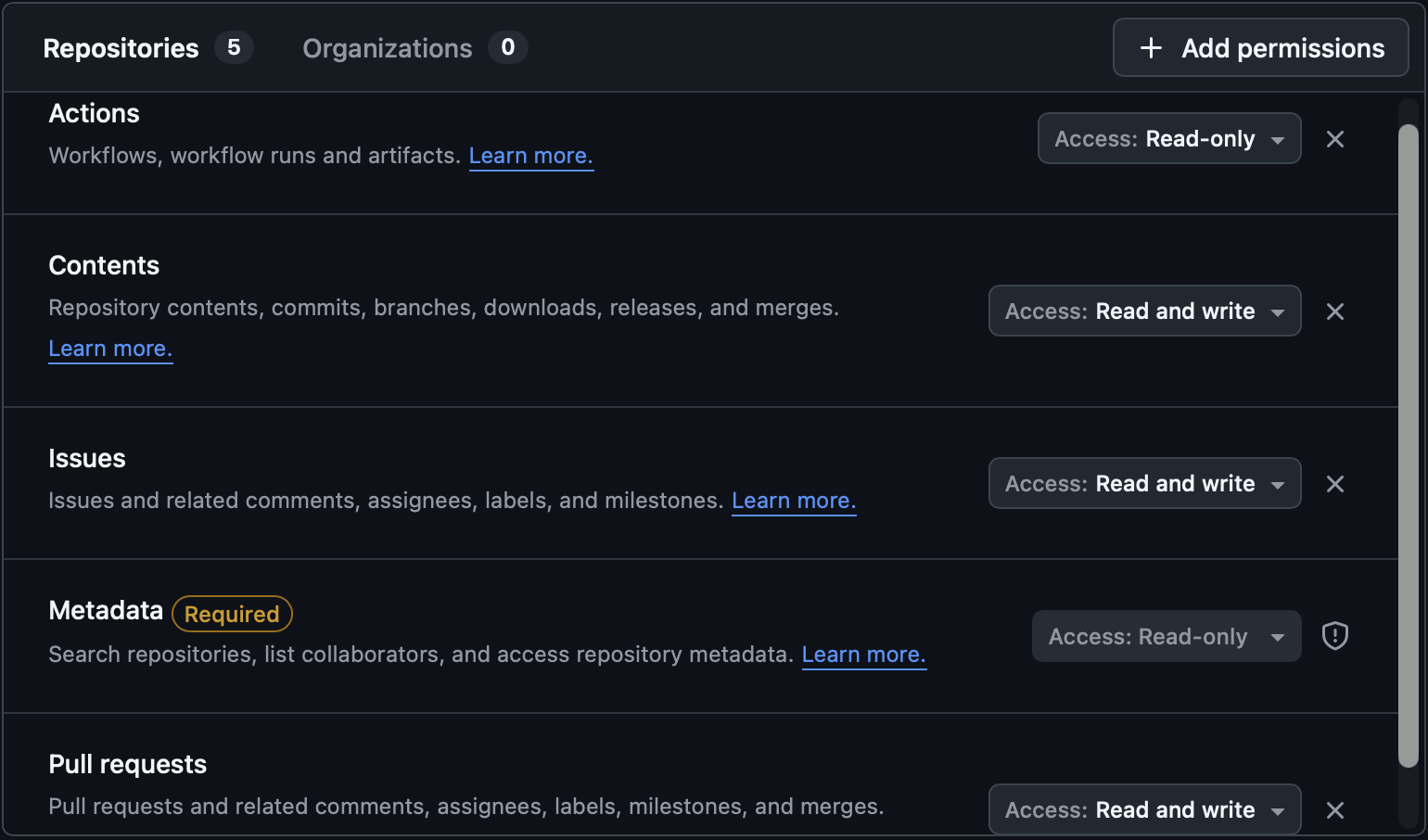
The token is stored in a dev-container-oss.env file in the parent directory (so that I can share the config among multiple projects). Simply having GITHUB_TOKEN set in the container will make gh work properly. You can pass the environmental variables that should be set in the container using:
  "runArgs": [
    "--env-file=${localWorkspaceFolder}/../dev-container-oss.env"
  ]
as part of devcontainer.json. Moreover, I want any commits to have the proper author set. To do that, I’m setting two additional envs: GIT_USER_NAME and GIT_USER_EMAIL. These are then used by a post-create script to properly configure git in the container. To do that, the container config needs an additional entry:
"postCreateCommand": "bash .devcontainer/post-create.sh",
"postStartCommand": "bash .devcontainer/post-start.sh",
Where .devcontainer/post-create.sh is:
#!/bin/bash
set -e

echo "Running post-create setup..."

# Override git config with environment variables if provided
if [ -n "$GIT_USER_NAME" ]; then
  git config --global user.name "$GIT_USER_NAME"
fi
if [ -n "$GIT_USER_EMAIL" ]; then
  git config --global user.email "$GIT_USER_EMAIL"
fi

# Add claude-yolo alias
echo 'alias claude-yolo="claude --dangerously-skip-permissions"' >> ~/.bashrc

# Ensure mounted directories exist & fix ownership (Docker volumes are created as root)
mkdir -p /home/vscode/.claude
sudo chown -R vscode:vscode /home/vscode/.claude 2>/dev/null || true

echo "Post-create setup complete."
One caveat is that your Git repository origin reference will need to use a https:// address, instead of git@github.com:..., which uses SSH for authentication.
Final touches
The above script also creates a claude-yolo alias so I can use claude from the command line, not just the GUI integration. Finally, we need to fix the permissions of the ~/.claude directory, as it is created by Docker mounts by root, which causes access issues later.
There’s additionally a post-start script, which ensures that we always have the latest Claude available in the console variant:
#!/bin/bash
set -e

sudo env PATH="$PATH" claude update
Setting up Claude
The final step is to log in to Claude. You’ll need to do this both from the GUI-Claude and from the terminal-Claude. Both store authorization tokens in different places (~/.claude.json and ~/.claude/settings.json). Why is that—I have no idea.
When authorizing, you’ll get a popup from VSCode to open a link—you’ll need to cancel that. That’s because the after-authorization redirect back to Claude won’t work, as the code-capturing temporary server runs inside a Docker container and is therefore not accessible from the host or the host’s browser.
Instead, copy the authorization link and paste it into a browser. You’ll get a code—copy it back into the GUI or the terminal.
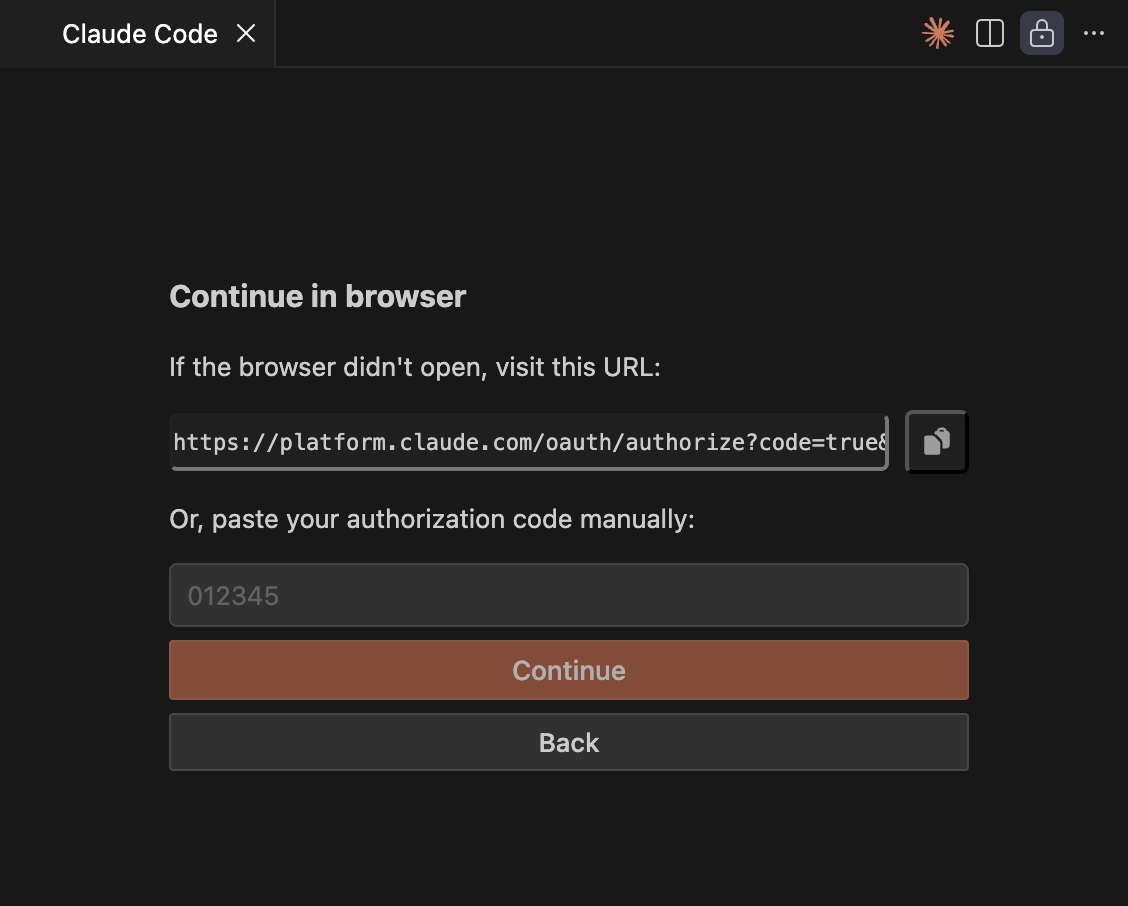
Thanks to mounting the home folder as a volume, Claude’s authorization will survive container restarts & rebuilds.
Bonus: Scala Metals integration
If you’re using the Scala Metals VSCode plugin, you’ll probably also want to install the Metals MCP server, which allows Claude to run tests, search for symbols, check compilation, etc., without the need to run sbt via bash.
This can be done by running on the command line:
claude mcp add --transport http metals http://localhost:62600/mcp
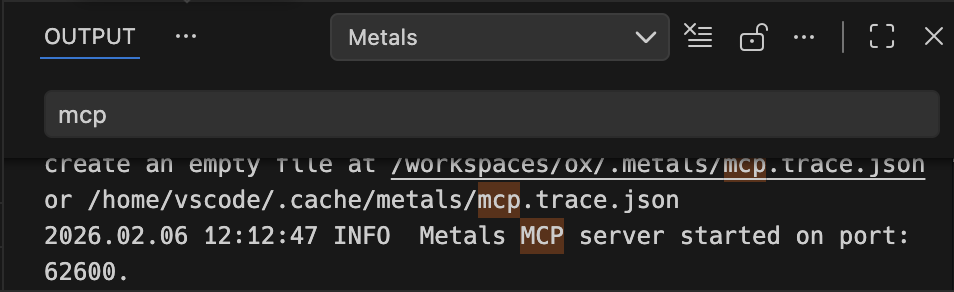
The port will differ for each project, and can be found by switching to the Output tab, then to Metals output in the dropdown, and searching for MCP.
You’re ready!
You can now run Claude dangerously, with some degree of security. Of course, Claude could still exfiltrate the contents of your codebase by POSTing it somewhere.
The next step in the setup would be to restrict network access, e.g., using a proxy. There are some projects that support this out of the box, e.g., Anthropic’s Sandbox Runtime or Docker’s sandbox—but these are not (yet) integrated with dev containers.
Hence, I’m leaving restricting networking for v2.0 of the setup.
comments powered by Disqus